
Outlook attachmentsstraight fromPhotos.
A tool that should have been standard all along.Select pictures in Apple Photos, resize them for email and send them as attachments in Microsoft Outlook for Mac.
Three simple steps.
From Photos straight into a new Outlook draft.
- 01
Select in Photos.
Select one photo or several.
- 02
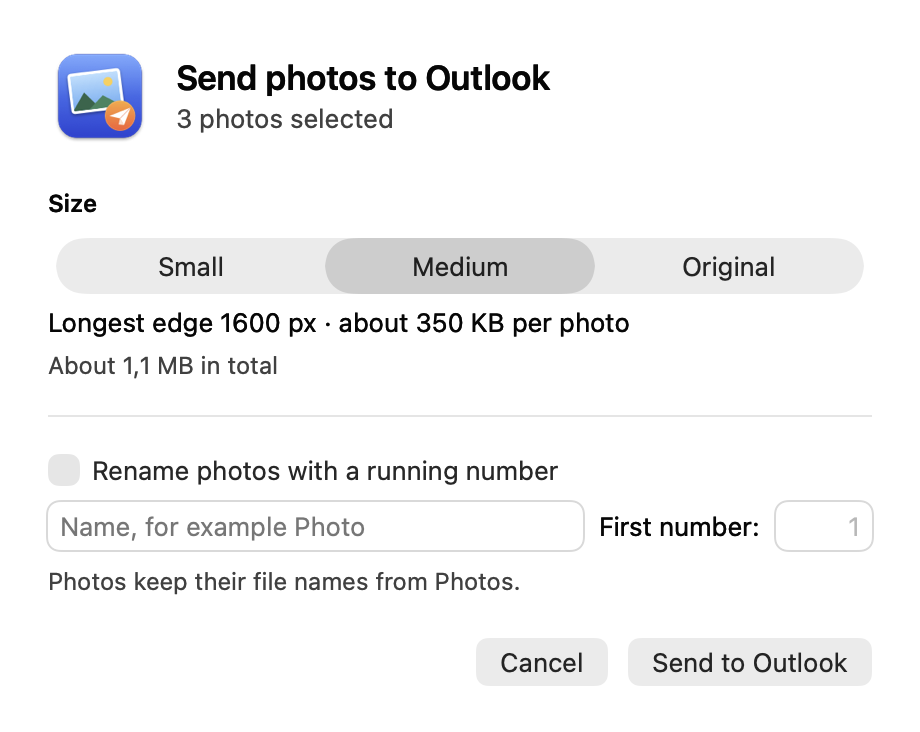
Share. Pick a size.
Share → Photos to Outlook. Pick a size; rename if needed.
- 03
Finish in Outlook.
Your photos are attached. Add a recipient and message, then send.
Set up once.
- Open the DMG. Drag the app to Applications.
- Open the app and follow the setup instructions.
- Reopen Photos. That’s it.
macOS 13 or later. Requires Microsoft Outlook for Mac; tested with the new Outlook.
Download free for macOS↓How do I send pictures from Apple Photos with Outlook?
Select photos on your Mac. Choose Photos to Outlook in the Share menu, pick an image size and send them to Outlook. A new email draft opens with the image files attached – without first exporting to your desktop or creating an iCloud photo link. Add a recipient and message, then send.
Can I automatically resize photos for email?
Yes. The app resizes photos locally on your Mac: Small up to 800 pixels, Medium up to 1600 pixels on the longest edge. Small images are never enlarged. Original keeps the resolution; HEIC is converted to JPEG. The app is built for Microsoft Outlook for Mac, requires macOS 13 or later and is tested with the new Outlook.
Photos, permissions & privacy
The app needs access to Photos and Outlook. Images are processed locally. It only opens a draft – you send it. Small and Medium remove location data; Original does not. Privacy